FAQ
About Zastrpay
What is Zastrpay?
Zastrpay is a digital payment account that lets you use cash to pay online or withdraw cash at our partner shops — all with one simple QR code
What does it cost to use Zastrpay?
Zastrpay is free to use — you pay no fees and no extra charges.
Where can I use Zastrpay payment QR codes?
You can use Zastrpay QR codes in any partner shop that supports our services. You’ll find all locations in our shop locator.
Signing up for a Zastrpay Account
How can I register with Zastrpay?
You can create your Zastrpay Account online or at one of our partner shops. After registering, you must complete your identity verification. To do this, you can show a valid ID document in person at a partner shop, or verify your identity online by uploading your document through IDnow. Once your verification is complete, we will confirm the opening of your account.
Why do I need to verify my identity?
Zastrpay is a regulated financial institution and must follow strict legal requirements, including verifying the identity of all customers. This identity check is part of our KYC and anti‑money‑laundering obligations. To use your Zastrpay Account for payments or cash withdrawals, you need to complete the full verification process.
What documents are supported for identity verification?
To verify your identity, you must use a valid, unexpired government‑issued document. We accept identity cards, residence permits, and passports. Any other document — such as visa cards, bank cards, health insurance cards, transport cards, or driving licences — cannot be used for identity verification.
What documents are supported for address verification?
If we cannot verify your address during registration, you’ll receive an email from us with further instructions. To confirm your residential address, we accept documents that are not older than 6 months. These include utility bills (water, gas or electricity), bank statements or official letters from a bank or financial institution, address registration documents, and official documents issued by a government authority.
Please note that invoices for product or service purchases, mobile phone bills, insurance documents, payslips or similar paperwork cannot be used for address verification.
How can I submit the requested documents safely?
You can upload your documents securely in the Zastrpay App or in the customer portal. Just log in and follow the steps on screen. If we need additional documents during a payment, you can submit them there as well — just as safe and straightforward.
Using Payment QR Codes
What is a QR code?
A QR code is a scannable image that your smartphone camera can read instantly. With Zastrpay, your QR code lets you deposit or withdraw cash in any partner shop — simply show your code, and the shop completes the transaction.
How do I generate a QR code for a payment?
Generating a payment QR code is easy. Choose Zastrpay at checkout on our partner’s website. Once you’re redirected to the Zastrpay App, log in, follow the steps on screen, and tap “Generate QR Code” to create it instantly.
For how long is my payment QR code valid?
Your payment QR code is valid for 15 minutes.
I closed the app/page. How can I access my QR code again?
Just log in again. On the main screen, open “Active QR Codes” and then tap “Show QR Code” to access your existing code.
How do I know if a payment was successful?
You’ll see your recent payments and their status on the Home screen of your Zastrpay account. If you want more details, open the Transactions tab in the bottom menu to view your full payment history.
Where can I see my transaction history?
You can find your transaction history by logging in to your Zastrpay account and clicking on the "Transactions" tab on the bottom menu.
SMS
Why am I not receiving SMS from Zastrpay?
If you’re not receiving SMS messages from Zastrpay, it’s often because SMS notifications are disabled on your phone. To ensure you receive our messages, check your smartphone settings and make sure SMS notifications are activated. Below you’ll find instructions for Apple and Android devices.
For Apple (iPhone):
- Open the Settings app.
- Scroll down and select Messages.
- Make sure the Allow Messages option is checked.
- Go back to Settings and select Notifications.
- Find the Messages app and make sure notifications are turned on (toggle is green).
- Also check whether Do Not Disturb or Airplane Mode is on, as these could prevent messages from being delivered.
For Android:
- Open the Settings app.
- Select Apps & notifications or simply Notifications (depending on your device).
- Select the Messages app from the list of apps.
- Make sure notifications are turned on.
- Check whether airplane mode is on or whether you are in Do Not Disturb mode, as this may prevent text messages from being delivered.
If you don’t receive the SMS, you can get the code via WhatsApp by tapping “Resend code” (after the 30 seconds have passed) and selecting “Use WhatsApp” instead.
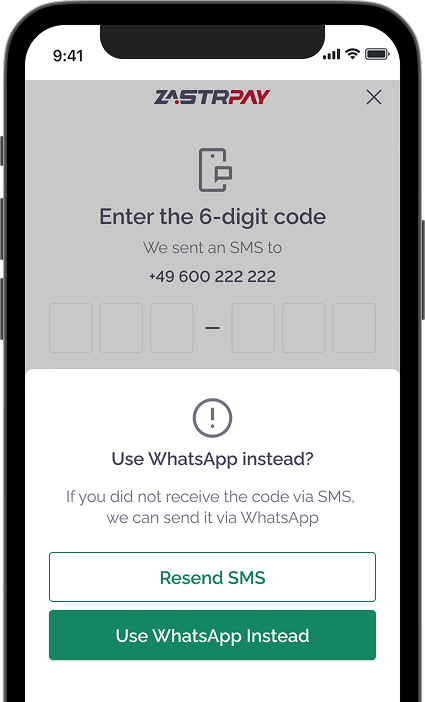
If the code still doesn’t arrive, try restarting your phone or resetting your network settings.
Update personal details
How do I change my mobile number?
1. If you no longer have access to your old mobile number:
- Go to https://app.test.zastrpay.com/login and choose 'My mobile number changed'.
- Enter your old mobile number, click Next and select ‘I don't have access to my mobile number’.
- Enter your PIN.
- A 6-digit code will be sent to your registered email.
- Enter the new number.
- You'll receive an SMS with a 6-digit verification code.
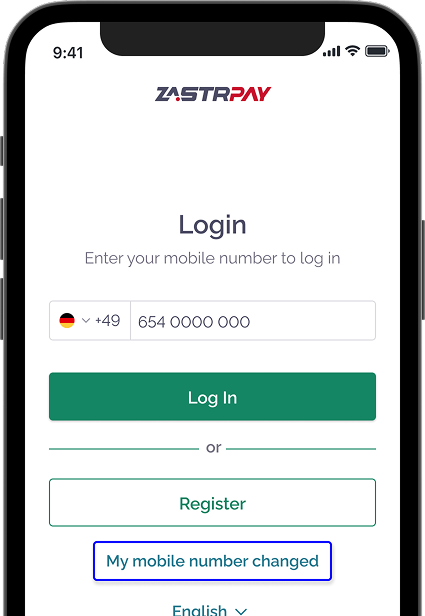
2. If you can access your Zastrpay account and need to update your mobile number, login at https://app.test.zastrpay.com/login:
- Click your profile initials icon in the top right corner.
- Select Settings > Change Mobile Number.
- Enter your PIN and the new number.
- You'll receive an SMS with a 6-digit verification code.
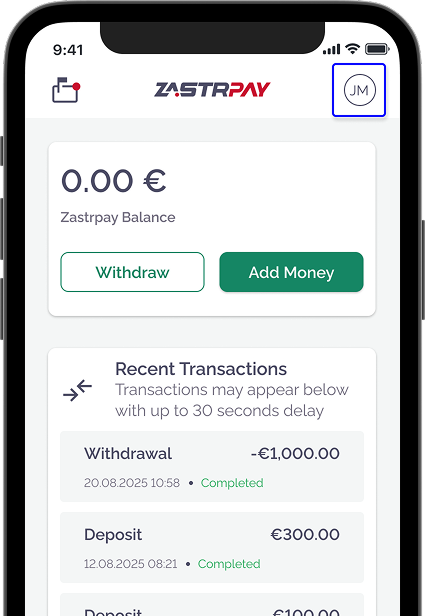
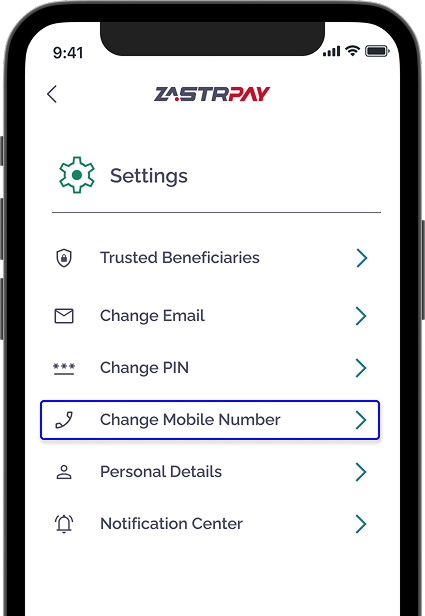
3. If you’ve forgotten your mobile number, please reach out to us at: contactus@zastrpay.com
How do I change my PIN number?
1. If you've forgotten your PIN:
- On the login screen, enter your mobile number and click the login button.
- Select the Forgot PIN option.
- You'll receive an SMS with a 6-digit code.
- After verifying your mobile number, another 6-digit code will be sent to your registered email.
- Set your new PIN and confirm it by entering it again to complete the process.
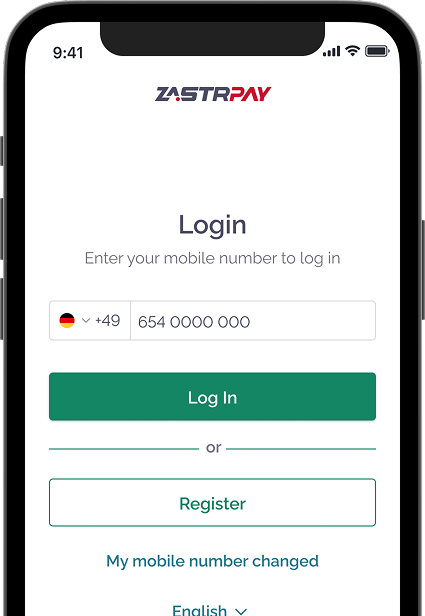
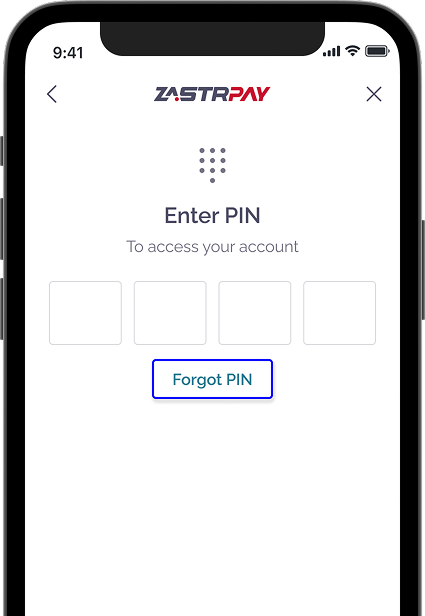
2. If you wish to change your PIN:
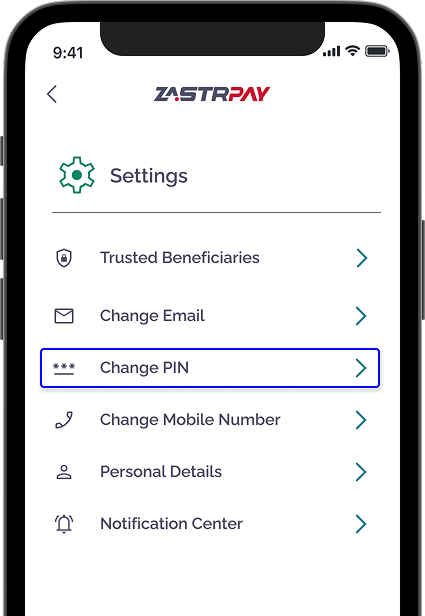
- Log in to your Zastrpay account at https://app.test.zastrpay.com/login
- Click on your profile initials in the top right corner.
- Navigate to Settings > Change PIN.
- Enter your current PIN and then input the new PIN twice.
How do I update my email address?
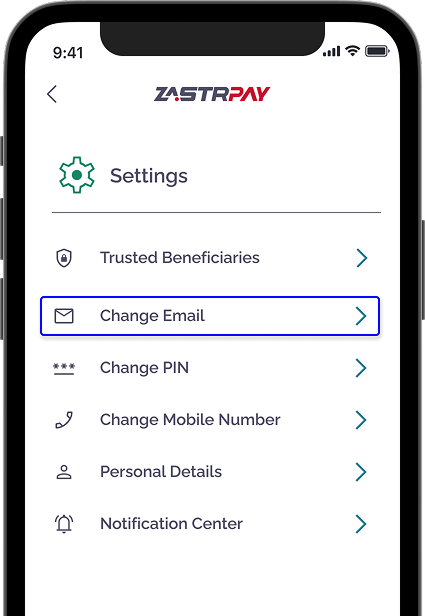
To update your email, please follow the steps below:
- Log in to your Zastrpay account at https://app.test.zastrpay.com/login
- Click your profile initials in the top right corner.
- Select Settings > Change Email.
- Enter your PIN and the new email.
- You'll receive a 6-digit code via email to verify the change.
Source of Funds
What is the source of funds verification?
Why do I need to send additional documents?
Financial institutions are required by law to verify the legitimacy of their customers' funds. This helps ensure compliance with anti-money laundering (AML) regulations and prevents financial crime. Whenever we require this information from you, you will receive an email from us and you will also see a notification when trying to deposit or withdraw money.
We appreciate that this information is very personal to you and the information you send us will remain strictly confidential and only be used to fulfil our legal obligations. All personal data is encrypted and securely stored in compliance with the applicable data protection laws as outlined in our Data Privacy Policy.
Which documents can I submit for source of funds?
The accepted documents depend on the source of your funds, such as income from employment, business profits, inheritance, or investments, etc. The most common documents are payslips, tax returns, or bank statements. Check the complete list in this FAQ.
Document upload tips
Make sure all documents are clear and readable. Documents that are covered up or cut out of the frame won't be accepted. Upload PDFs or photos of physical documents. Screenshots are not accepted.
How long does the review take?
The review process typically takes one business day. If additional information is required, we will contact you. You will receive an email from us with the outcome of the review.
What happens if I don’t provide these documents?
If you do not submit the required information, your account may be subject to restrictions or, in some cases, closure since we may be unable to continue offering our services to you.
Documents for the source of funds
The accepted documents depend on the source of your income.
Employment and freelance income
- Tax return statement or tax declaration for the previous year
- Payslip(s) or pension slip(s) for the last 3 months
- Bank account statement for the last 6 months
- Invoices dated within the last 12 months, clearly showing your full name, and address
- Contracts for services provided as a freelancer, dated and signed by both parties, stating the duration of the agreement, payment terms and/or additional benefits
Income from investments and financial assets
- Tax declaration
- Bank statement reflecting credit of amount from a particular source
- Dividends statement, certificate, or voucher clearly showing the amount and your position (you must be a director or shareholder)
- Statement from investment manager or provider
- Investment certificate or portfolio confirming the sale of shares and withdrawal of money
Sports betting and lottery winnings
- Statement of win, or withdrawal from the gambling platform and corresponding bank statement.
- Evidence of wins and withdrawals from any platforms you've used, or from organised tournaments, for the specified timeframe. Also provide a corresponding bank statement clearly showing the receipt of funds and current account balance.
Closing Account
How can I close my Zastrpay account?
You can close your Zastrpay account at any time and at no cost. Simply email us at contactus@zastrpay.com, and our team will assist you with the closure process.
We’re always committed to providing a positive experience, and we hope our service has supported you well.